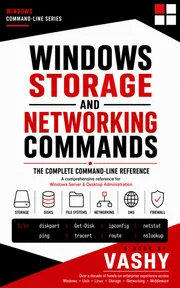
Windows Storage and Networking Commands
The Complete Command-Line Reference for Administrators and Power Users
The complete command-line reference for Windows storage and networking, with both CMD and PowerShell forms and step-by-step troubleshooting playbooks.
Read on Kindle →As an Amazon Associate, codesecho earns from qualifying purchases.
A working reference, not a tutorial you read front to back. It’s organised so you can find a command in under thirty seconds, confirm its syntax, copy a working example, and get back to the problem in front of you.
Where a command exists in both the legacy command prompt and PowerShell, both are given. The legacy form comes first because it works everywhere, including recovery environments and minimal Server Core installs. Commands that were removed or deprecated are marked, along with the supported replacement.
Who it’s for
Administrators, support engineers and technically minded users who work with Windows storage and networking from the command line. It covers Windows 10, Windows 11, and Windows Server 2016 through 2025, and calls out where client and server editions behave differently.
What’s inside
Part 1 — Foundations
- The three shells, elevation and permissions
- Command discovery and help; output, filtering and formatting
- Running commands on remote machines
Part 2 — Storage
- Taking inventory of disks; diskpart in depth; partitioning and formatting with PowerShell
- File system health and repair; fsutil
- Copying, moving and synchronising; reclaiming disk space
- Permissions, ownership and attributes; shares and SMB
- Storage Spaces; virtual disks and iSCSI
Part 3 — Networking
- IP configuration and network adapters
- Connectivity testing and DNS
- Ports, connections and listening services; routing and ARP
- Windows Firewall and wireless networking
- Network diagnostics and packet capture; remote access and transfer
Part 4 — Troubleshooting Playbooks
- “The disk is full” · “The volume will not shrink” · “The USB drive is write protected”
- “I cannot reach a server” · “DNS resolves the wrong address” · “The port is in use”
- “File sharing stopped working” · “The network is slow” · “The machine cannot get an IP address”
Appendices: quick references for storage and networking, deprecated commands and their replacements, commands that destroy data, interface name and index reference, common port numbers, and an index of commands.
From the book
From the “The port is in use” playbook. First find what holds the port:
netstat -ano | findstr :8080
Get-NetTCPConnection -LocalPort 8080 -State Listen
Identify the owner:
$p = (Get-NetTCPConnection -LocalPort 8080 -State Listen).OwningProcess
Get-Process -Id $p | Select-Object Id, ProcessName, Path
If nothing holds the port and binding still fails, the port falls inside a reserved range, usually Hyper-V or WSL reserving a block of ephemeral ports:
netsh interface ipv4 show excludedportrange protocol=tcpEither move the application outside the excluded range, or reserve your port explicitly so Windows won’t claim it:
netsh int ipv4 add excludedportrange protocol=tcp startport=8080 numberofports=1More books
- MikroTik VPN Configuration Handbook Working RouterOS 7 tunnels for WireGuard, IPsec, L2TP, SSTP, OpenVPN and EoIP, including the firewall, routing and NAT rules that make them carry traffic.
- FortiGate 7.6 in Production 16 typical production incidents, rebuilt on real FortiOS 7.6 and solved step by step, in a free lab you can build on your own PC.
- Real-World Firewall Lab Scenarios Build it, prove it, break it, fix it: firewall rules, NAT, multi-WAN, VPN, IDS and high availability on pfSense CE 2.9.0, every listing recorded in a free lab.